Custom Collections / Decks
PlayingCards.io includes the ability to create or import custom card decks.
Adding a Collection
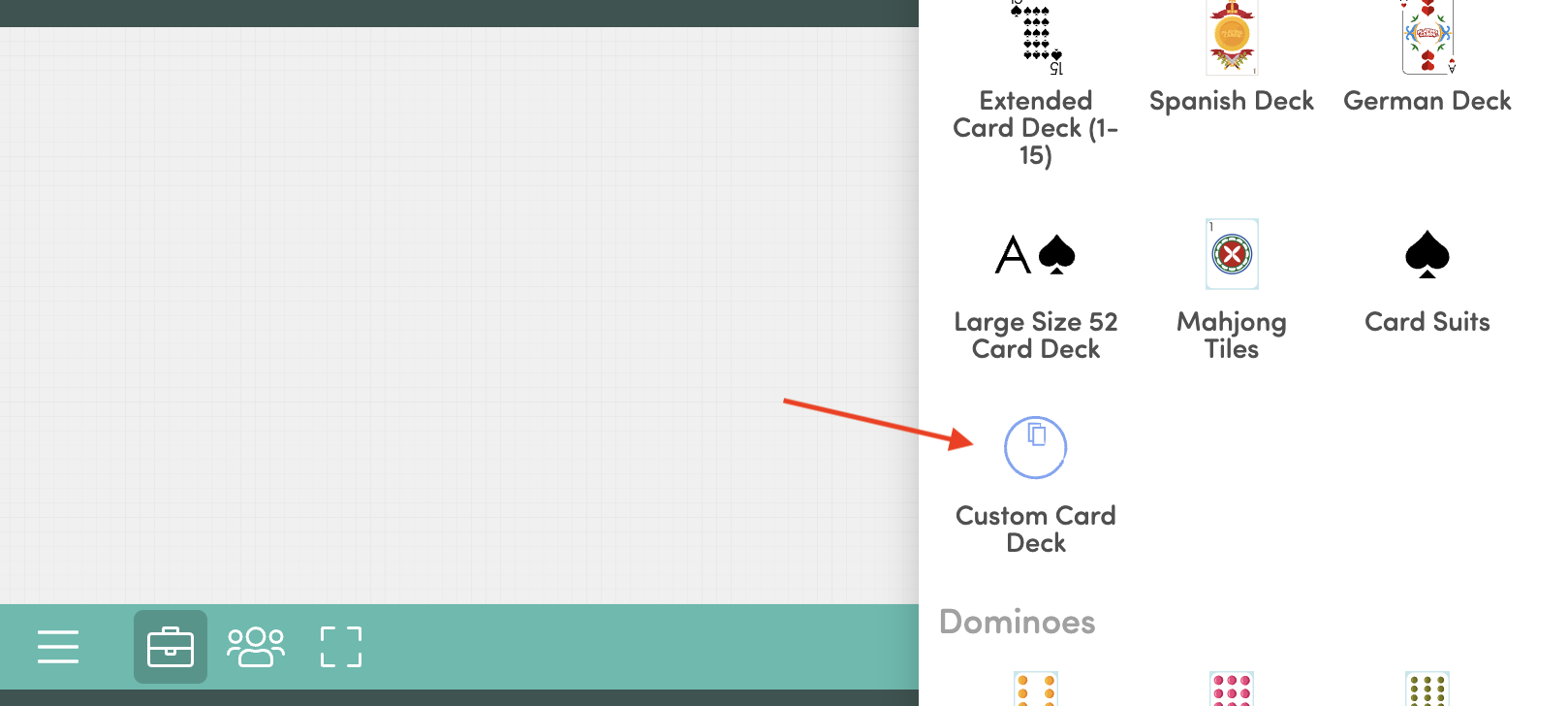
In your room, from Edit Mode, make sure nothing is selected. Then under "Click to Add Widgets" scroll down and choose "Custom Card Deck".
For non-rectangle or cards with a transparent background, use the "Custom Pieces Collection" instead.
Adding Images
By default, the template configured to show a single image on the face of the card.
Use the Upload Image(s) button to choose images from your device.
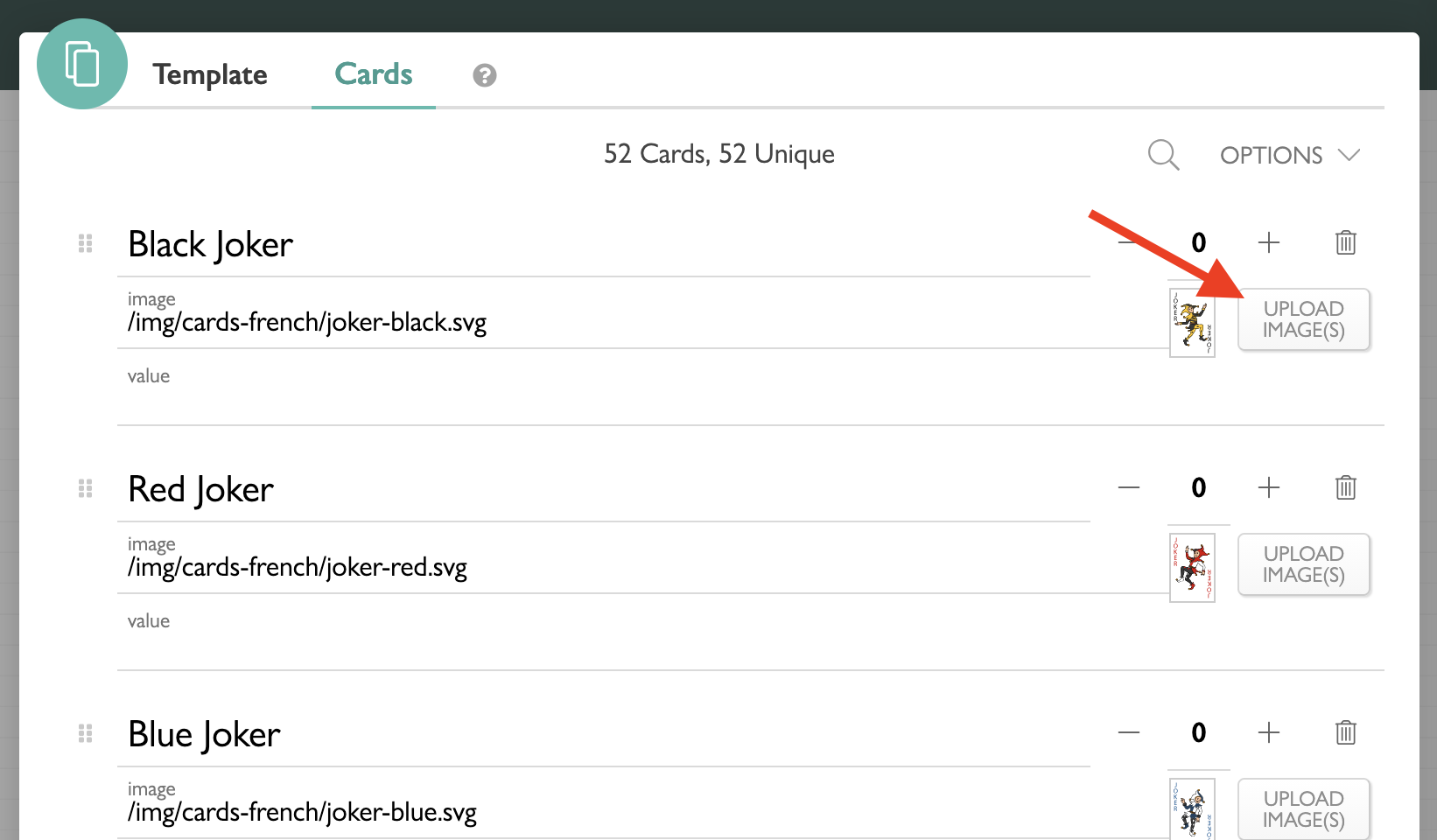
To quickly add multiple images to your deck, choose the Upload Image(s) button on the first card, then select multiple images on your device. One image will be added to each card.
Deck Template
Each side of a card has a different template. A template is made up of layers. A layer is a bit of text, a number, or an image that is shown on the card.
Layers set to "All the same" will be identical on every card. Each layer set to "Different per-card" is customized in the list of cards.
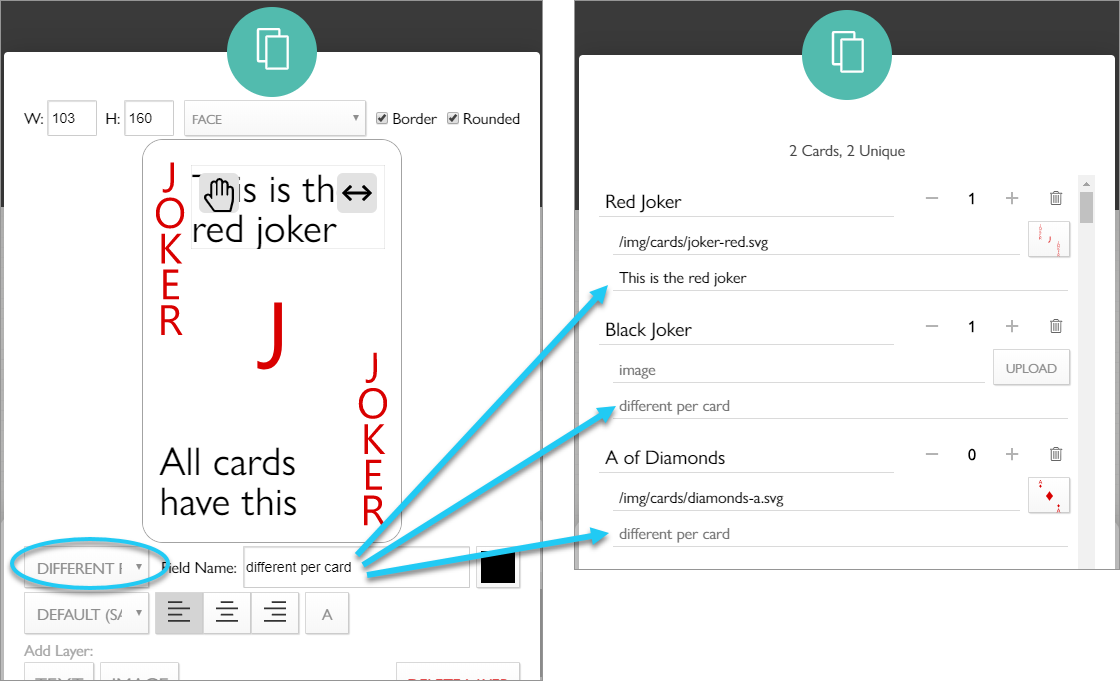
The 'image' layer is the red joker image behind the text layers and is edited with the 'image' text box. The 'different per card' layer is the 'This is the red joker' text and is edited with the 'different per card' text box.
Each unique card is listed in the Add/Remove Cards popup. Duplicate cards can be added with the + button.
CSV Import / Export
A CSV file can be imported to quickly fill a deck. The top row of the CSV file must be layer names that correspond to the layers in the Template tab. By default, the 52-card deck field should be image.